

Additional Libraries
Many Heads Concentrate v1.3 [Max for Live]
P2P | 12 May 2026 | 472 KB
Concentrate is the strip-silence tool Ableton Live has been missing. Drop it on any audio track in Arrangement View to replace low-level noise with actual silence, or to entirely remove the gaps between the sounds you want to keep.
Finally a Good Strip Silence Tool for Ableton Live
Ableton Live has never had a proper strip silence function. For years, producers have been working around it by manually cutting clips, bouncing through a noise gate, or switching to Logic just to clean up a vocal take. Concentrate is the Max for Live device that fills that gap. Drop it on any audio track in Arrangement View, set your threshold, and it instantly uses RMS analysis to identify every region worth keeping and shows you a live preview before you touch a single clip. When you're happy, you can commit with one click. If you change your mind, one Undo brings everything back exactly as it was.
Whether you're chopping samples, cleaning up vocal stems, or processing field recordings, Concentrate eliminates unwanted noise and fits right into your Ableton workflow. Stack Clips lines everything back-to-back for sample prep or glitch effects; Keep Clips in Place preserves your original timing for traditional editing. Left Pad and Right Pad give you breathing room around each region, and Snap to Zero Crossings keeps your cuts clean. It's the silence removal tool Ableton users have wanted for a long time, now available as a Max for Live device for Ableton Live 12.2 and higher.
How to Concentrate Your Audio
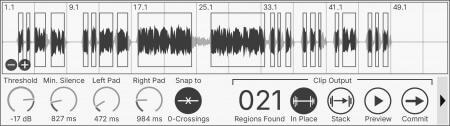
Start by adjusting the Threshold. Audio regions that exceed this value will be kept, and regions that fall below the value will be discarded. Audio regions that will be kept are outlined, and regions that will be discarded are faded back.
Increase the Min. Silence to smooth out your selection. This setting determines how long a region must last before it is considered below the threshold. Low values will split your audio at every tiny dip in volume, while higher values ignore short pauses to keep your phrases intact.
Left Pad adds some cushioning ahead of the kept audio regions. Right Pad adds a smooth tail to the end of your regions so they don't end with an abrupt silence.
Select Snap to Zero Crossings to make the edges of the kept audio regions snap to the center line of the sound wave. This can help prevent clicking and popping.
The Clip Counter displays the number of currently detected kept regions. This updates in real time as you adjust the controls.
If Consolidate is toggled on when you commit your changes, Concentrate will output a single clip that contains all selected regions, with silence inserted between each region if the device is in In Place mode. If you don't need a separate clip for each committed region, this can speed up the commit process.
Select Keep Clips in Place to keep the audio clips in their original positions when you commit your changes to the audio track. Select Stack Clips to arrange the clips of kept audio regions consecutively on the track. This can be useful for prepping samples for chopping or finding interesting sounds.
Select Preview Kept Regions to play through all currently selected kept regions in sequence, with a moving playhead on the waveform.
Pressing the Commit applies your changes directly to the audio track. Once committed, you can use Undo (Cmd/Ctrl+Z) to restore the original clip and return the device to its pre-commit state.
Added in v1.3, you can now switch between audio clips on the current track by clicking the Next Clip or Previous Clip buttons.
Use the Reset Concentrate button to reload the device to its initial load state.
Requirements
Ableton Live: Version 12.2 or higher (Suite, or Standard with M4L add-on).
Max: Version 9.0 or higher.
Operating System:
macOS: 11.0 (Big Sur) or later.
Windows: Windows 10 (version 22H2) or Windows 11.
Important: Concentrate is a Max for Live device and only works with Ableton Live. It also uses special features that require Max 9 or higher.
home page
Finally a Good Strip Silence Tool for Ableton Live
Ableton Live has never had a proper strip silence function. For years, producers have been working around it by manually cutting clips, bouncing through a noise gate, or switching to Logic just to clean up a vocal take. Concentrate is the Max for Live device that fills that gap. Drop it on any audio track in Arrangement View, set your threshold, and it instantly uses RMS analysis to identify every region worth keeping and shows you a live preview before you touch a single clip. When you're happy, you can commit with one click. If you change your mind, one Undo brings everything back exactly as it was.
Whether you're chopping samples, cleaning up vocal stems, or processing field recordings, Concentrate eliminates unwanted noise and fits right into your Ableton workflow. Stack Clips lines everything back-to-back for sample prep or glitch effects; Keep Clips in Place preserves your original timing for traditional editing. Left Pad and Right Pad give you breathing room around each region, and Snap to Zero Crossings keeps your cuts clean. It's the silence removal tool Ableton users have wanted for a long time, now available as a Max for Live device for Ableton Live 12.2 and higher.
How to Concentrate Your Audio
Start by adjusting the Threshold. Audio regions that exceed this value will be kept, and regions that fall below the value will be discarded. Audio regions that will be kept are outlined, and regions that will be discarded are faded back.
Increase the Min. Silence to smooth out your selection. This setting determines how long a region must last before it is considered below the threshold. Low values will split your audio at every tiny dip in volume, while higher values ignore short pauses to keep your phrases intact.
Left Pad adds some cushioning ahead of the kept audio regions. Right Pad adds a smooth tail to the end of your regions so they don't end with an abrupt silence.
Select Snap to Zero Crossings to make the edges of the kept audio regions snap to the center line of the sound wave. This can help prevent clicking and popping.
The Clip Counter displays the number of currently detected kept regions. This updates in real time as you adjust the controls.
If Consolidate is toggled on when you commit your changes, Concentrate will output a single clip that contains all selected regions, with silence inserted between each region if the device is in In Place mode. If you don't need a separate clip for each committed region, this can speed up the commit process.
Select Keep Clips in Place to keep the audio clips in their original positions when you commit your changes to the audio track. Select Stack Clips to arrange the clips of kept audio regions consecutively on the track. This can be useful for prepping samples for chopping or finding interesting sounds.
Select Preview Kept Regions to play through all currently selected kept regions in sequence, with a moving playhead on the waveform.
Pressing the Commit applies your changes directly to the audio track. Once committed, you can use Undo (Cmd/Ctrl+Z) to restore the original clip and return the device to its pre-commit state.
Added in v1.3, you can now switch between audio clips on the current track by clicking the Next Clip or Previous Clip buttons.
Use the Reset Concentrate button to reload the device to its initial load state.
Requirements
Ableton Live: Version 12.2 or higher (Suite, or Standard with M4L add-on).
Max: Version 9.0 or higher.
Operating System:
macOS: 11.0 (Big Sur) or later.
Windows: Windows 10 (version 22H2) or Windows 11.
Important: Concentrate is a Max for Live device and only works with Ableton Live. It also uses special features that require Max 9 or higher.
home page
Only registered users can see Download Links. Please or login.
No comments yet